Showing posts with label TOSHIBA TV. Show all posts

TOSHIBA 32AV555D SERVICE MODE AND MOTHER BOARD POWER REGULATOR CIRCUIT

TOSHIBA REGZA 32AV555D 

SERVICE MODE AND MOTHER BOARD POWER REGULATOR CIRCUIT  

Service Mode
Entering to Service Mode
1. Set VOLUME to minimum and press MUTE button once on remote control.
2. Press MUTE button again and hold button down.
3. While holding the MUTE button, press MENU button on TV set.
Key Function in the Service Mode
The following key entry during display of adjustment menu provides special functions.
Test signal selection > INPUT button (on remote control)
Selection of the adjustment items > CH UP/DOWN (on TV) or MENU UP/DOWN (on remote control)
Change of the data value > Volume +/- (on TV) or MENU RIGHT/LEFT (on remote control)
Adjustment menu mode ON/OFF > MENU button (on TV)
Initialization of the memory (IC152) > CALL + CH UP button on TV
Automatic A/D Adjustment (Component, Composite (PAL, NTSC), RGB)  > 7 button
Self diagnostic display ON/OFF > 9 button
Selecting the Adjusting Item
Every pressing of MENU UP button in the service mode changes the adjustment items in the order of table below. (MENU DOWN button for reverse order)
Setting Panel Option Data
Panel option data is subject to OPT4 and OPT5.
Enter to service mode and select menu of OPT4 or OPT5 by pressing P UPor P DOWN during display of adjustment menu. After selecting OPT4 or OPT5, press + or - to set OPT4 or OPT5 value
32AV555D/554D > SHARP > OPT 4 = 0x02 ,OPT 5 = 0x05
37AV555D/554D > LGD OPT 4 = 0x01, OPT 5 = 0x06
42AV555D/554D > LGD > OPT 4 = 0x01, OPT 5 = 0x07
Exit from Service Mode
Pressing POWER button to turn off the TV once.
Test Signal Selection
Every pressing of INPUT  button on the remote control changes the built-in test patterns on screen.
Self Diagnostic Function
1. Press "9" button on remote control during display of adjustment menu in the service mode. The diagnosis will begin to check if interface among IC's is executed properly.
2. During diagnosis, the following displays are shown.
# Self check display and Item are subject to the models.
(1) Firmware :
Version information of microprocessor
Series name (AAAA) and market area (BB) and software program version (000_000).
(2) Time : Total hour of turn the TV on. (Unit : H)
(3) BL_STATUS :
Counter for saving BackLight on error1.
This value is counted till 99 (Decimal).
(4) Bus line : -- "OK" is normal
SCL-GND (Red indication) : SCL-GND short circuit
SDA-GND (Red indication) : SDA-GND short circuit
SCL-SDA (Red indication) : SCL-SDA short circuit
(5) Bus cont : --- "OK" is normal.
NG is abnormal (Red indication).
(6) Block
UV : TV reception mode
V1 - V6 : VIDEO 1-6 input mode
DTV : DTV mode
Version Check Mode
1. Press "9" button twice on remote control during display of adjustment menu in the
service mode.
The version of main MPU will be checked.
2. During Version Check, the following displays are shown.
# Version check display and Item are subject to the models.
1) MAIN MPU :
Version information of microprocessor
Series name and Code Program Version (5 figure number) and software program
version (000_000).
(2) EEPROM :
Version information of EEPROM : Display 1 byte data.
(3) OPTION :
Option information : Display eight numbers of 1 byte data.
(4) HDMI EDID :
EDID data check item.
OK : EDID data is enable.
NG : EDID data is disable.
(5) BL Ver
Version information of Boot Loader software as Toshiba release.
(6) AP Ver
Version information of Application software as Toshiba release.
(7) A/D Adjust
A/D adjustment item.
COMP : Component input
RGB : RGB Signal (SCART input)
NTSC : NTSC (60 Hz) SD signal (composite input).
PAL : PAL (50 Hz) SD signal (composite input).
OK : A/D adjustment set correctly.
NG : A/D adjustment set incorrect.
(8) Memory Data Version
Version information of EEPROM.
DRMA**** means model number of EEPROM.
REV** means version of EEPROM.
(9) Model Name
Model name information (ascii code). : Display 8 byte data.
(10) LCD Panel Vendor information display
The following Panel Vendor (DDD) and screen size (00) and displayed.
Example : AUO-32 (1080p) indicates that Vendor is AUO and Screen Size is 32 inch
and Full HD panel
Status Check Mode
1. Press "9" button thrice on remote control during display of adjustment menu in the
service mode.
The status of this model will be checked.
2. During Status Check, the following displays are shown.
* Status check display and Item are subject to the models.
(1) MAIN :
Main source information :
Display RF position number (0 - 999) on the main screen, or Input Source
(EXT1/2/3/HDMI etc.)
(2) MAIN FORMAT :
Display Video format information
(3) MAIN PLL :
Main PLL information : Display 1 byte data at eight.
Setting Hotel Mode
Enter to service mode and select Hotel Mode menu by pressing MENU UP or DOWN . After selecting Hotel Mode, press MENU RIGHT or LEFT to enter details setting in Hotel Mode.
To select menu, press MENU RIGHT or LEFT and press OK to enter the adjustment menu of the following table data.
To move the cursor in the adjustment, press MENU RIGHT or LEFT.
Software Upgrade
1. Unplug AC Power.
2. Insert USB Flash memory containing software to TV set.
3. Plug AC Power.
4. Progress bar is shown on TV screen while upgrading. "100 %" is shown when completed.
Never power off while upgrading.
5. Unplug AC Power.
6. Remove USB Flash memory.
7. Plug AC Power
MOTHER BOARD POWER REGULATOR CIRCUIT 
1.2V REGULATOR 
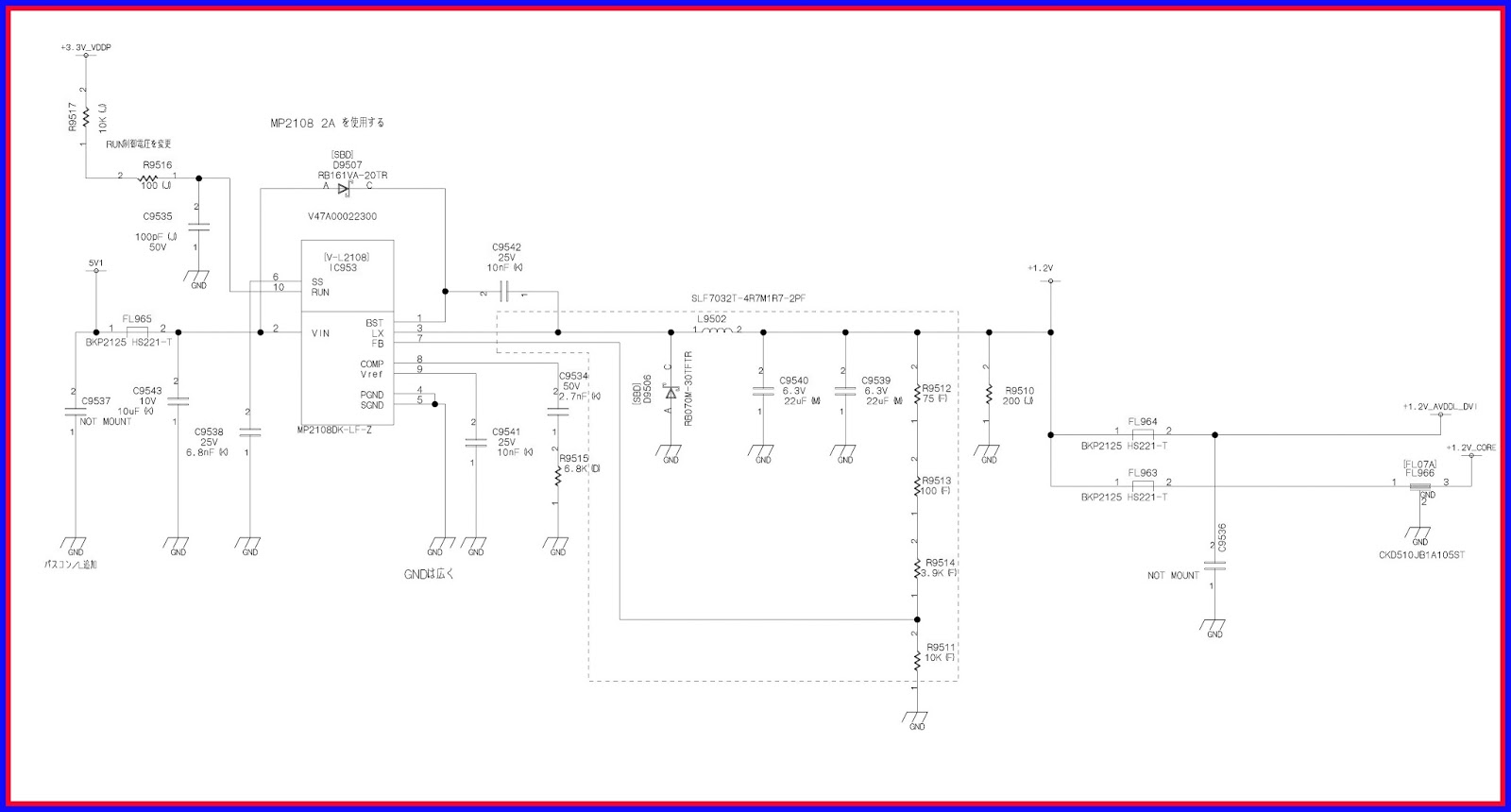
2.6 V REGULATOR 
3.3 V REGULATOR 
CLICK ON THE IMAGES TO ZOOM IN 

TOSHIBA 38VL14G SERVICE MODE AND POWER SUPPLY CIRCUIT

TOSHIBA 38VL14G 

SERVICE MODE AND POWER SUPPLY CIRCUIT 

SERVICE MODE
ENTERING TO SERVICE MODE
1) Press MUTE  button once on Remote Control.
2) Press MUTE  button again to keep pressing.
3) While pressing the MUTE  button, press MENU button on TV set.
DISPLAYING THE ADJUSTMENT MENU
1) Press MENU button on TV.
KEY FUNCTION IN THE SERVICE MODE
The following key entry during display of adjustment menu provides special functions.
Frequency of lamp replacement CALL + RGB button
Test signal selection : POWER button (on Remote)
Selection of the adjustment items : Channel UP/DOWN (on TV or Remote)
Change of the data value : Volume +/– (on TV or Remote)
Adjustment menu mode ON/OFF : MENU button (on TV)
Initialization of the memory (QA02) : CALL + Channel button on TV (UP)
“CSBRT” selection : 1 button
“SCNT” selection : 4 button
“COLP” (or “OTHER”) selection : 5 button
“TNTC” (or “TNTV”) selection : 6 button
Self diagnostic display ON/OFF : 9 button
CAUTION : Never try to perform initialization unless you have changed the memory IC.
ELECTING THE ADJUSTING ITEMS
1) Every pressing of CHANNEL UP button in the service mode changes the adjustment items  (DOWN button for reverse order).
ADJUSTING THE DATA
1) Pressing of VOLUME +/– button will change the value of data in the range from 00H to FFH. The variable range depends on the adjusting item.
EXIT FROM SERVICE MODE
1) Pressing POWER button to turn off the TV once.
INITIALIZATION OF MEMORY DATA OF QA02
After replacing QA02, the following initialization is required.
1. Enter the service mode, then select any register item.
2. Press and hold the CALL button on the Remote, then press the CHANNEL UP button on the TV. The initialization of QA02 has been complated.
3. Check the picture carefully. If necessary, adjust any adjustment item above.
Perform “Auto search Memory” on the owner’s manual.
CAUTION: Never attempt to initialize the data unless QA02 has been replaced.
TEST SIGNAL SELECTION
1) Every pressing of POWER  button on the Remote Control changes the built-in test patterns on screen as described below in SERVICE MODE.
SELF DIAGNOSTIC FUNCTION
1) Press “9” button on Remote Control during display of adjustment menu in the service mode. The diagnosis will begin to check if interface among IC’s are executed properly.
2) During diagnosis, the displays are show
DESIGN MODE
ENTERING TO DESIGN MODE
1) Select the Service mode.
2) While pressing CALL button on Remote and press MENU button on TV.
3) Press MENU button on TV.
When QA02 is initialized, items “OPT0” and “OPT1” of DESIGN MODE are set to the data of the representative model of this chassis family.
Therefore, because ON-SCREEN specification remains in the state of the representative of model. This model is required to reset the data of items “OPT0” and “OPT1”
SELECTING THE ADJUSTING ITEMS
Every pressing of CHANNEL DOWN button in the design mode changes the adjustment items. (UP button for reverse order)
ADJUSTING THE DATA
Pressing of VOLUME UP or DOWN  button will change the value of data.
ELECTRICAL ADJUSTMENTS
Bright adjustment (CSBRT) and white balance adjustment RDRV BDRV
1 Connect the CSBRT adjusting signals to the video input.
2 Install the W/B checker on the screen.
3 Select CSBRT at adjusting mode.
(The CSBRT data is changed to 52 from the initial value by a microcomputer, and both screen brightness will turn to MAX.)— To be dealt with by the production line
4 Adjust the CSBRT data so that the brightness at the time turns to (Normally White) x A%.
(When the data is adjusted, the SCBRT data returns to the initial value and screen brightness declines)
A = 70±5 %
5 Connect the 501RE white signals to the video input and adjust by RDRV and BDRV so that they will come to the following values.
x = 0.280±0.005
y = 0.330±0.005
6 As shown in 4 again, repeat 5 after adjusting the CSBRT data
POWER SUPPLY CIRCUIT 
CLICK ON THE IMAGE TO ZOOM IN 


TOSHIBA 42WP27B SERVICE MODE LED BLINKING AND POWER SUPPLY CIRCUIT

TOSHIBA 42WP27B 

SERVICE MODE LED BLINKING AND POWER SUPPLY CIRCUIT 

Adjustment Procedure
+B Set-up
Item / Preparation
1. Input a Grey scale signal.
2. Set the picture controls: -
Picture mode: Normal
White balance: Normal
Adjustments
Adjust and confirm indicated test point for the specified voltage.
Adjust
Vsus ---R540 ----170V ± ---- 1V ----P1 pin 3
Vda---- R537----- 67V ±----- 0.5V--- P12 pin 1
Confirm
15V ------------15.3V ± 0.5V ------P23 pin 2
13V ------------13.3V ± 0.5V ------P25 pin 5
15V------------ 15.2V ± 0.5V------- P25 pin 1
Audio 13V -----12.5V ± 0.8V ----P6 pin 1
Audio-13V -----12.5V ± 0.8V---- P6 pin 3
5V --------------5.2V ± 0.3V-------- P25 pin 7
STB 5V --------5.0V ± 0.3V ------P27 pin 4
Fan 15V -------15.0V ± 0.5V----- P10 pin 1
Fan 5V --------5.2V ± 0.3V------- P10 pin 4
PFC 380V-----± 15V -------C447(+)
Driver Set-up
Item / Preparation
1. Input an APL 100 % white signal.
2. Set the picture controls: -
Picture mode: Normal
White balance: Cool
Aspect: 16:9
Adjustments
Adjust driver section voltages referring the panel data on the panel data label
Name
Test Point
Voltage
Volume
Vsus
TPVSUS (SS)
170V ± 1V
R540 (P)
Vbk
TPVBK (SC)
155V ± 5V
R6443 (SC)
Ve
TPVE (SS)
150V ± 1V
R6774 (SS)
Vset
TPVSET (SC)
218V ± 6V
---
Vad
TPVAD (SC)
-90V ± 1V
R6477 (SC)
Vscn
TPVSCN (SC)
Vad*+118V ± 2V
---
Vda
TPVDA (SS)
67V ± 1V
R537 (P)

Service mode
CAT (computer Aided Test) mode
Press and hold the volume down button on the front panel of the unit and press the status button on the  remote control 3 times quickly with in 1 second. This will place the unit in to CAT mode .
 To exit the CAT mode, access the ID mode and switch off the main power.
IIC mode
Select the IIC mode by Up/Down button on the remote control at the front page of CAT mode then press the Action button on the remote control.
To exit the IIC mode, press the R button on the remote control.
CD mode
Select the CD mode by Up/Down button on the remote control at the front page of CAT mode then press the Mute button on the remote control more than 5 sec
To exit the CD mode, press the R button on the remote control.
SD mode
Select the SD mode by Up/Down button on the remote control at the front page of CAT mode then press the Action button on the remote control.
To exit the SD mode, press the R button on the remote control.
White balance adjustment
1) Find the nearest area to brightness of 10 cd/m2 as Low light by color sensor.
2) Adjust Sub bright to set Low light level to 10 cd/m2 exactly.
3) Set G cut off to " 80 ".
4) Adjust B and R cut off to set color temperature.
5) If Sub Bright is changed re-adjust it to set Low light to 10 cd/m2.
6)Find 75% of white area by color sensor.
7) Set G Drive to " E8 ".
8) Adjust B and R Drive to set color temperature.
9) Repeat item 4) to 7) to set both Low light and high light.
10) Increase same steps of R, G and B Drive to set largest level of 3 color drive to "FC".
11) Re-adjust Low light level again.
Sub brightness setting
1) Set white balance to Cool.
2) Adjust All cut off to start some pixels emission at black 2% area and no emission at black 0% area.
3) Write down all cut off data.
4) Set white balance to Nornal.
5) Adjust All cut off to set same data of Cool mode.
6) Set white balance to warm.
7) Adjust All cut off to set same data of Cool mode.
Self Check
1. Self-check is used to automatically check the bus line controlled circuit of the Plasma display.
2. To get into the Self-check mode, press the volume down button on the customer controls at the front of the set, at the same time pressing the OFF-TIMER button on the remote control, and the screen will show.
If the CCU ports have been checked and found to be incorrect Or not located then " - - " will appear in place of " OK
Power LED Blinking timing chart
1. Subject
Information of LED Flashing timing chart.
2. Contents
When an abnormality has occurred the unit, the protection circuit operates and reset to the stand by mode. At this time, the
defective block can be identified by the number of blinkes of the Power LED on the front panel of the unit.
LED BLINKING
CHECK POINT
2
SC,SS,C BOARD
3
D BOARD
4
P BOARD (CHECK IC508 PROTECTION CIRCUIT
6

FAN CIRCUIT , FAN STOP CHECK PIN 3 OF P10 CONNECTOR

POWER SUPPLY CIRCUIT 

CLICK ON THE IMAGES TO ZOOM IN 


LED BACK LIGHTING IN LCD TELEVISION - TOSHIBA LED LIGHTING

LED BACK LIGHTING IN LCD TELEVISION 

 TOSHIBA LED BACK LIGHTING FOR LCD TELEVISIONS 

The intent of this paper is to familiarize Electronic Servicers with what will be the central component in the new generation of flat screen televisions. With the ever growing popularity of LCD televisions, research and development has produced a method of back lighting an LCD panel that is superior to the Cold Cathode Fluorescent (CCFL) Backlighting, currently the most popular amongst television manufacturers. The new method employs a Light Emitting Diode Array, commonly referred to as “LED Array” or, an in-line strip of individual LED’s, referred to as “Edge Lit”. This paper is a basic explanation of how LED backlighting works. There are many algorithms applied to the IC’s involved in the LED Dimming process. This paper does not intend to go into the engineering behind this very complicated process.
WHY LED
LED backlighting is an evolution of basic LCD technology. For a comprehensive understanding of basic LCD technology, it is recommended you review Toshiba White Paper, 2.0, “LCD Television Technology”.
Assuming basic LCD technology is understood, we will discuss the need for evolving to LED backlighting. There are inherent difficulties with the CCFL method of backlighting:
1. CCFL requires an inverter to supply 400-700 volts AC as an operating voltage for the lamps. This results in heavy power requirements.
2. True “Black” areas of the picture are not attainable because the CCFL lamps are always on. This allows for leakage of light through the liquid crystal materials even when the crystals are “turned off”. The contrast ratio (true white to true black) suffers greatly because of this.
3. Motion blur is difficult to minimize using the CCFL method of backlighting (constantly on backlighting) due to the relatively slow response time (transition time from off to on to off) of the TFT circuitry in the panel.
4. CCFL average life span is 20,000 hours.
Physical Comparison
Figure  shows a graphic of a conventional LCD panel utilizing a standard CCFL backlight assembly. You will notice the inverter, lamps, and diffuser.

Figure showed  is a drawing of two LED lighted panels; one Edge Lit, one LED array.

All three panels shown require lighting and a diffuser. At this stage, the main difference is the inverter (required by CCFL method). Of the two LED backlight designs, the LED array offers more precise brightness/contrast control and will therefore, be the method discussed in this paper.
An LED Array obviously requires a power source (Driver Board). An LED Array that is not intended for use as a brightness/contrast controller can be powered by a simple DC power source producing a constant current. This method will produce a pre-determined brightness level uniformly throughout the entire panel. The end result would be comparable to using a CCFL or Edge Lit Backlight. Therefore, another type power source must be used to achieve more precise control when using an LED Array. Figure 3 is a close-up of an LED array showing a driver and the driver PCB.

Pulse Width Modulation (PWM) 
By changing the “On” time and “Amplitude” of a DC voltage, we can achieve control of the current flow through an LED Array at specific times. See Figure

In Figure we can see that the average current flow through the array in a given time period is 100ma. However, by using PWM, we are only driving the array for 1/5th the time with 5 times the current. If 100ma was the desired current for a normal brightness level, we could achieve normalcy on the LCD Panel in 1/5th the time. The human eye has a built-in retention for the highest brightness level applied. This retention gives the perception of a brightness level closer to the 500ma drive than the 100ma drive. Therefore, when a brightness level higher than what is considered normal (desired) is required by the signal, PWM can provide that level (perceived by the human eye). In order to prevent noticeable changes in applied light (flicker), the pulse repetition rate must be higher than 100hz and less than 1khz. One of the side benefits of PWM is decreased power requirements due to the decreased duty cycle (up to 30% less power compared to CCFL).

Applying the Theory
Now, let’s apply the PWM theory to an LCD Panel using an LED Array for back lighting. Refer to following Figure.

If the LED array is divided into sections (grids) and each section lights a small portion of the entire LCD panel (also sectioned into grids), the brightness level in one particular section can easily be controlled using PWM in conjunction with data from the T-Con and Video Processing circuitry. For example, if the processed video is calling for a bright picture in the upper right portion of the LCD panel, the backlight section(s) in that area will be told to provide the required brightness level. This synchronization between the Video Processor, T-Con, and LED circuitry will occur across the entire LCD panel thus, improving brightness (where called for) across the display.

About Dark Scenes
The refresh rate of the panel is either 60, 120, or 240 times per second. Those are the rates that scene changes may occur. When the processed video requires pixels to become dark (black), during a refresh cycle, the Thin Film Transistors (TFT”s) that drive the LCD’s for those pixels are told to shut-off. Because of the charging capacitor in the TFT circuitry, there is a slight delay in shutting down the LCD. To compensate for that delay, the LED array section in that particular grid will also be told to turn-off. The response time of the LED’s are instantaneous therefore, eliminates any chance of light being passed through the LCD Material of those pixels. This produces much darker areas of black, improving the Contrast Ratio. For a refresher, see Figure bellow (LCD Matrix with TFT’s and capacitors).

 Having the ability to increase the brightness of the backlight during bright scenes and shut-off (or decrease) the backlight during dark (black) scenes can produce dynamic contrast ratios of up to 2,000,000 to 1. In comparing the life expectancy of LED to that of CCFL, the LED backlighting lasts up to 2 ½ times longer. The fact the response time is almost instantaneous in an LED, motion blur is reduced when the backlight is shut-off at the same time the TFT is commanded to shut-off. There can be no brightness lag if there is no backlight applied to illuminate the liquid crystal material.

TOSHIBA LED TV LC-40LE732E - LC-46LE732E SERVICE MODE MAIN POWER AND LED POWER SUPPLY

TOSHIBA LED TV LC-40LE732E - LC-46LE732E 

3D LED TV

SERVICE MODE MAIN POWER AND LED POWER SUPPLY 

SERVICE ADJUSTMENTS
1. Adjustment method after PWB and/or IC replacement due to repair The unit is set to the optimum performance at the time of shipment from the factory. If any value should become improper or any adjustment is necessary due to the part replacement, make an adjustment according to the following procedure.
Procure the following units in order to replace the main unit:
MAIN UNIT DUNTKF915WExx
NOTE: [Caution when replacing ICs in the main unit (IC0503)]
Before replacing the relevant part, procure the following parts in which the data have been rewritten.
Ref.
Description
Parts code IC + data
Description new IC code for service
IC0503
PC EDID
RH-IXD456WJZZY
VHIR24002AS-1Y AND DATA LC4xLE73x_PC_EDID

How to Enter and exit the adjustment process mode.
1. By key-unit.
1. Unplug the AC power cord, plug the AC power cord and wait until pyramid led blue is iluminated and then.
2. Press and hold “V-” and “INPUT (AV)” keys, simultaneously.
3. “K” appears on the screen.
4. Press and hold “V-” and “P-” keys, simultaneously.
5. “SHARP FACTORY MENU” appears.

6. Unplug the AC power cord to exit of adjustments process.
2. By own R/C
1. Turn on the TV set.
2. Press “9”, ”9”, ”9”, “2”, “2”, “2” (to enter this code the time is limited to 5 sec. approx.)
3. “SHARP FACTORY MENU” appears.

4. Press “OK” on lines 5 TO 11 to go to submenu.
5. Press “END” to return to main menu.
6. Press “MENU” to exit of adjustments mode.
Remote control key operation and description of display in adjustment process mode
key operation
Remote control key
Keyboard unit
Function
Cursor (▼/▲ )

P (UP/DOWN)

Moving an item (line) by one (up/down) on “Sharp Factory Menu”
or submenus.
OK

INPUT (AV)

Selecting a submenu on lines 5 to 12 of “Sharp Factory Menu” or
executing a function.
Cursor (◄/►)
V (+/-)
Changing a selected item setting value.
MENU
MENU
Exit of adjustment mode.


Return to “Sharp Factory Menu” from a submenu.

The required input mode should be switched previously to enter the Service Mode.
CAUTION: Use due care in handling the information described here lest the users should know how to enter the adjustment process mode. If the settings are tampered with in this mode, unrecoverable system damage may result.
Initialization to factory setting
Caution: When the factory settings haves been made, all user setting data, including the channel settings, are initialized.
The adjustments done in the adjustment process mode are not initialized.) Keep this in mind when initializing these settings.
1. Enter in Service Mode.
2. Press “
▼” or “▲” key until selecting INIT.
3. Press OK key.
4. INIT menu appears and “Factory init” option is selected.
5. Press “
►” and select the option desired (EURO/RUSSIA/NORDIC/UK/EAST EUROPE).
6. Press OK key and initialization starts.
7. WEST EURO OK message appears for EURO option when the setting is complete.
RUSSIA OK message appears for EURO option when the setting is complete.
NORDIC OK message appears for RUSSIA option when the setting is complete.
UK OK message appears for UK option when the setting is complete.
EAST EUROPE OK message appears when the setting is complete.
Note: Never turn the power off during initialization.
TV restarts in “Initial Installation” menu. The following settings will be back to their factory ones:
• User settings
• Channel data (e.g. Broadcast frequencies)
• Maker option setting
• Password data.
SMART LOADER
Description.
The Smartloader is a function implemented in the service software of SEES designed L730 series intended to easily replicate the user settings of one TV into another. These settings include (but not restricted to): picture and audio, tuning set-up, language and country selection, PIN, child locked programs… Factory adjustments are not copied as they
are different for every TV.
The Smartloader makes possible the user data to be stored in a memory device connected to the USB terminal of the TV that is used as reference and later load those data into other TVs by using their respective USB terminal.
How it works.
In reference TV:
1. Insert a memory device in the USB slot.
2. Enter in service mode, select Factory Menu and SMARTLOADER option.
3. Select “Save settings to USB” and press the RIGHT cursor in the remote control.
4. Wait until “OK” is displayed, the file has been successfully created in the root directory of the memory device.
In case of error, an explanation message is shown.
In TV to be cloned:
1. Insert a memory device with a file in it obtained following the above procedure.
2. Enter in service mode, select Factory Menu and SMARTLOADER option.
3. Select “Load settings from USB” and press the RIGHT button in the remote control.
4. After some seconds, “OK, reboot TV set” is displayed. In case of error, an explanation message is shown.
5. As indicated, reboot the TV to load the new settings.
Very important: All the TVs must have the same software version and hardware.
How to Enter in the Public Mode (Hotel Mode)
There are two following ways to display the Public Mode setting screen.
Method 1:
Turn on the power and enter in the Service mode as usual and select line 8 [PUBLIC MODE].
Method 2:
Unplug the AC power cord.
Plug the AC power cord. When the LED light blue, press “VOL+” and “INPUT(AV)” keys at the same time.
Then, when you are asked for the password, enter “0027”.
After this sequence the TV will turn on showing the Public Mode setting screen. In another case, the screen is erased, and it operates in the ordinary mode.
Public Mode Settings
1. POWER ON FIXED [VARIABLE <> FIXED]
When it is set to “FIXED” the TV is impossible to be switch off by Main Switch or Remote Control.
2. MAXIMUM VOLUME [0 <> 60]
Is possible to set the maximum volume at limited level.
3. VOLUME FIXED [VARIABLE <> FIXED]
Is possible to fix the sound volume at limited level.
When “FIXED” is selected the sound volume before limited is fixed.
4. VOLUME FIXED LEVEL [0 <> 60]
If “FIXED” has been selected, is possible to set a fixed volume at the level that is chosen.
5. RC BUTTON [RESPOND <> NO RESPOND]
If “NO RESPOND” is selected, the remote control keys are inoperative.
6. PANEL BUTTON [RESPOND <> NO RESPOND]
If “NO RESPOND” has been selected, the set’s keys remain deactivated (Except POWER key).
7. MENU BUTTON [RESPOND <> NO RESPOND]
If “NO RESPOND” has been selected, “MENU” key, of remote control, is inoperative.
8. ON SCREEN DISPLAY [On <> Off]
If “OFF” has been selected, the On Screen Display does not appear.
9. INPUT MODE START [ DTV > ATV > AV > SCART-AV > COMPONENTS > PC-RGB > HDMI1 > HDMI2 > HDMI3 > HDMI4 ]
When any other item than “NORMAL” has been selected, the sets will start in a selected input mode at the next power-on.
10. INPUT MODE FIXED [VARIABLE > FIXED]
“FIXED” has been selected, any channels and input modes other than those selected at the start mode cannot be picked up.
11. INPUT TV MODE PROGRAM NUMBER [1-999]
When any other item than “NORMAL”, i.e. number, has been selected, and “INPUT MODE START” option is
set to “TV”, the sets will start in the selected service / program number at the next power-on.
12. RC PATH THROUGH [ON <> OFF]
When ON and RS-232 circuitry is really assembled , in pin #9 of RS-232 socket appears a feedback of the remote signal (3.3v logic type).
13. HOTEL MODE [ON <> OFF]
If ON has been selected the HOTEL MODE is activated.
14. RESET
Cancel all Public Mode settings. (It returns to the factory settings)
15. COMMIT
Press OK to select this item, or press cursor RIGHT / LEFT keys on the remote control to apply the change. If “YES” is selected the change will be stored and the TV set will be reset.
SOFTWARE UPGRADING
Main Unit Software Upgrading (USB)
Introduction

In order to proceed with the Software Updating do not enter into Service Mode.
Procedure
1. Insert the USB memory into a side USB terminal with the file name “zTVApp_Complete.zimage” on the root directory.
2. Once detected the USB it will appear on screen the following request:
3. Press “◄” until selecting “Yes”.
4. Press “OK”.
The software update process starts.
“Software upgrading progress **%” message appears.
NOTE: During the upgrading process, do not power-off the TV set.
Once finished the process the following success or failed message appears.
5. Remove the USB Drive.
6. Press OK to reset the TV.
7. In case of failure, please repeat the upgrade process again.
POWER SUPPLY CIRCUIT 
MAIN POWER 

LED POWER (LED DRIVE) 
CLICK ON THE IMAGE TO ZOOM IN